Thursday, August 2, 2012

LS9 Routing Techniques and Ideas - the ins and omni-outs


Hello again fellow audiophiles, ready for some more fun with the LS9?  I was hoping so.  In this installment we’ll tackle a bit of routing and show some possible solutions to situations that popup while mixing corporate events.  First we need to get our terminology on the same level.  Let’s start with some Digital Mixer vocabulary to get us all up to speed.


Now that we have some groundwork laid down, let’s start putting it to good use.  I’m going to layout some scenarios and give an explanation of possible scenarios that would provide a solution.

DISCLAIMER… I am only making suggestions here, so don’t get your faders in a bunch if I don’t do it EXACTLY the same way you do it, this is theory, not a rule book.  Please send all hate mail correspondence to…Chilloutman@itsnotthatserious.com

Thanks.

REMEMBER TO MAKE SURE THAT THE STEREO MASTER FADER IS DOWN BEFORE YOU RECEIVE SIGNAL FROM ANY SOURCE!!!!!!

Scenario #1
You’re mixing for XYZ Distribution Company at their semi-annual sales seminar series workshop. (Yes, that’s a lot of S’s and I did that on purpose.)  You’ve got 2 presenters on stage with 4 Q&A mics in the audience.  The presenters need to hear the questions but not each other.  You’re also taking pre-recorded questions from a video shot earlier in the day.
Possible solution:
Create a mix-minus that contains the 4 Q&A mics and the sound from the video feed.  Then route that through a Mix on the console, post fader so that any mutes or level changes you make will be reflected in what the presenters hear.

You can accomplish this by bringing up the MASTER FADER LAYER on the console and assigning a MIX to an omni out that is feeding the foldback speakers on stage.
After you’ve done that go back to the input fader level and double tap the button that corresponds to the MIX number you just setup.  (These are just off the left hand side of the display.)  See it flashing, this is called “flip to fader mode” one of my favorite modes on the LS9.  Make sure the flashing button is the same mix that you routed to the desired omni earlier and bring up the faders on the desired channels. 
Voila!! You’ve just created a fold back mix.  You also want to make sure that these are set to POST FADE, you can do this by touching the ENTER button while the mix button is flashing and using the wheel to highlight ALL POST in the top right hand corner of the window, then press enter again. 

Note: The LS9 defaults to pre-fade, so if you are starting your programming from factory default, you will need to set your mix to post-fade.

Here’s a picture to help you navigate this area.


Scenario #2
You’re designing a system for Conglomerates Unlimited in a 2000 seat dome in Minneapolis.  You need to cover an area 200’ deep and 130’ wide.  You have a line array for the mains, front fills across the edge of the stage and delay lines about 140’ back into the room.  You also need to route signal to subs for some rockin’ tuneage they have in a video playback for the CEO.
Possible Solution
I use the matrix in this situation, since you will not need a mix-minus, and it has a “set it and forget it” quality that leaves you with all of your MIX sends available for record feeds, green room playback and such.  I would also setup an independent omni out for each bank of speakers so you can exercise both delay and volume control over each “zone”.

Start by labeling your outputs in the MASTER FADER LAYER for MATRIX 1 through 3 (The sub is going on a separate fader so don’t get ahead of me!) Matrix 1 will be our Mains, 2 our front fills and 3 the delay speakers.  While you’re in there select a patch point, I like to use start with omni 1 for matrix 1 and so on.  Keep a notepad handy and write these down, it will make the next couple of steps a lot easier and faster.  That should take care of the primary speakers.  Now we turn our attention to an oft forgotten ally in the audio onslaught, I’m referring to the subs.  The method I use for feeding subs entails using the MONO fader on the MASTER FADER LAYER.  (It’s just to the left of the red stereo fader, says MONO on the labels underneath it.)  Select the Mono fader and set your patch point like you did for the Matrix section, for instance omni 4.

Now that we’ve got everything wired together it’s time to do some mixing.  From the MASTER FADER LAYER, double tap the MATRIX 1 button to flip to fader the sends.  I like to route through the stereo fader since you have an easy visual reference in input fader mode as to what is routed there, and then to your matrix.  So grab the Stereo Fader and set it to unity.  Hit the Select button on the Stereo fader and move that fader to unity.  Repeat this step for MATRIX 2 and 3, this tells the console that you want to send signal FROM the stereo bus TO the Matrix.  While you’re on the MASTER FADER LAYER go ahead and turn up the MONO fader to about -15.  Now navigate back to the INPUT FADER LAYER and let’s do some mixing.

Let’s start at the video playback that I mentioned earlier. Select the channel and you’ll notice two buttons near the pan knob on the screen.  Select both of those, this will tell the channel that it needs to hit the Stereo fader and Mono fader.  Voila!! You should be hearing something now, but it probably doesn’t sound right. Here’s why, you need to set delay times for your mains and delays based on their distances from the front fills.  May need to do this for the subs also.

“Sounds great Joe, but how do I do that?!?!”

I’m glad you asked…
Under the SETUP menu you’ll see SYSTEM SETUP tab.  In that tab you’ll see OUTPUT PORT SETUP and a button for OMNI 1-8. Select OMNI 1-8.  That will display a menu like this…


Select OMNI 1-8 then you’ll see this window…


Set it to feet on the top of the menu and highlight DELAY, then select each knob and turn it to the desired distance.  Remember you want to start your measurements from the box closest to the back stage area.  For instance if your front fill are on, or in line with the lip of the stage that is your “zero” point (your line of speakers the does not require delay).  If your subs are 3 feet in front of them your delay time on the subs will be 3 feet (make sure to measure from the front of your “zero” speaker to the front of the next speaker in line).  Then your will measure from your “zero” line to the next set… perhaps your main stripe of line array… then from “zero” to your delays.  This will give you the same reference point for every zone of speakers you are using.  Remember also when you delay sound you are not just bringing the actual sound into alignment, you are bringing the speakers phase into alignment as well, this is a subject requiring its own set of articles, so suffice to say, if you think 3 feet will not make a difference in sound quality… think again.  That sounds way better now, right? Now that you’re hearing sound from all the boxes you can adjust their levels from the MASTER FADER LAYER.

 If you’re one of the really cool people, you’ve read my article on wireless control of the LS9 and you can walk around the venue and adjust your levels. You haven’t read my other article?!?!?! Ok fine, scroll down when you “get some downtime” and you can read how it's done wether you have a PC or a Mac.

Application time
Now that you’ve seen a practical application of some techniques let me tell you a little about why they work.

Using a Mix-Minus approach to Scenario #1.
It’s called Mix-Minus because it’s the mix minus an element or two.  Since you can’t normally send lavs or podium mics to a stage monitor (Because of dreaded FEEDBACK!!) this is a great technique to give the speaker on stage a way to hear and interact with the audience and make it look natural.  Plus the speaker doesn’t have to worry about straining to hear (or walking into your front fills), they already have a stage wash blinding them don’t give them anything else to stress out about.

Using the Matrix in Scenario #2
Using the Matrix is a fast and easy way to route and time align the Mains and Delays with the Front Fills.  In this instance it makes sense to setup the Matrix this way because it acts like a distribution amp. It’s taking a single source (The STEREO MASTER) and sending it to multiple outputs (MATRIX 1 – 3) while giving us independent level control of each output.  Plus it frees up all of the MIX outputs to be used for other sends that have different mix requirements.  (Fancy way of saying they want to hear different things and not be bothered with what’s happening in the PA.)

Well that’s about all I have to say about that, I hope you feel a little smarter and more confident about using the LS9. If you don’t then read it again!!!  Kidding, this can be some intense stuff if you’re not familiar with digital consoles.  If you have questions or just want to say hi, feel free to email me at joem@jsav.com.  I’d love to hear from you.

Until next time, may your faders run true and compressors refrain from pumping.


Article by Joe McLellan
Audio Technician/Engineer
J&S Audio Visual
Show Services


Originally from Florida Joe moved to Texas 2006 after graduating from Full Sail in Winter Park, FL. He formed an interest in a technical career at the age of 15 after taking up the bass guitar, and came on full time at J&S in 2007. Besides his duties designing, engineering, and running corporate events for J&S Audio Visual Show Services division, in his free time he records for local musicians and podcasters. He is also a music hoarder and frequents local record shops for the latest in obscure bands and music. 

What's In Your Tech Kit?


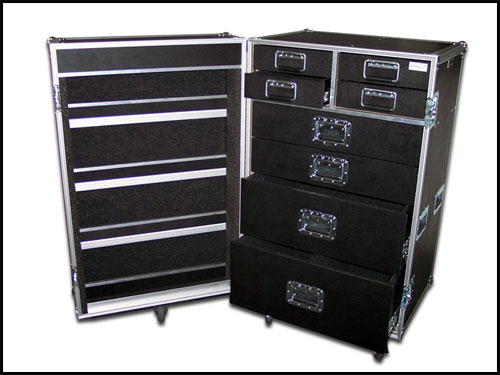
Your tech kit is your lifeline.  When you’re on show site, running to Guitar Center or Radio Shack is not always an option, so having a well-stocked tech kit can be the difference between failure and success. In this article I will present quite a few items to have in your tech kit, ranging from absolutely-necessary, to this-is-a-really-good-idea.  Glean what you can from this, and even perhaps chime in with your own comment.

When putting together a tech kit I start by looking at the equipment booked on the show, and how many days it will be out.  Using this as a starting point lets me get an accurate count on batteries, DI's, LSP's (Laptop Sound Ports) and cables.  Knowing the gear being used, (PA, console, com, wireless etc.) dictates the extras that go into the tech kit. For example, a show with a digital console needs fewer patch cables than one with an analog console.  A show with powered speakers needs to have power stingers and more iso's then a non-powered system.  Having the right number of adaptors/turnarounds is almost as important as the PA itself.  After all if you can’t get signal into your speakers they turn into really heavy, really expensive paperweights really fast. So lets talk about what should be in the ideal tech kit!

Some of these are obvious.  I am going to list them nonetheless.

Tools
                           
-    A flashlight is a lot better than trying to use your phone to light up the back of a rack.  It’s also a lot cheaper if it gets dropped.

-    Little Lights are a must to light up A2 world back stage, and to be able to hand off a couple for client usage

-    Multiple screwdrivers.  Little ones for tweaking those small hard to get to screws, and normal size ones for getting into racks and cabinets.

-    A multi-meter, Qbox and cable tester are quick ways to help you figure out if something is not working properly, so instead of labeling everything NFG you can give an educated assessment of what is actually wrong.

-    When you find a problematic cable, it can be mission critical to it gets fixed immediately.  A nice assortment of allen wrenches, pliers, crimpers, box knives, wire strippers and a soldering kit are all things that at times you can’t do without.

-    When flying speakers, ratchet straps and tie line can help get your hangs exactly where you want them to stay.

-    Even in this ever-growing digital age sharpies and board tape are still necessary tools to an audio engineer, so do not forget them.

-    (Speaking of tape), during the course of the show you will most likely want some gaff and/or electrical tape as well. They’re like multi tools: cleaning up cable runs, fixing speakers, taping connectors together, fixing set, stage markers (this list could be very long).

-    Clear medical tape is great to have when using lavs or head worn mics that are a little loose and do not want to stay in the desired position.


-    Until everything goes rechargeable, batteries will always have to be restocked. Wireless mic's, DI's and client equipment is what we are concerned with, so have a healthy stocking of AA, AAA and 9volts. Remember to take into account rehearsal and show days, and multiple shows in one day.  Keeping a stash of used batteries in your kit is a good idea (ones that are not drained, but you don’t feel comfortable using them for show either).  I find them useful for mic tweaking and rehearsals, as well as the many miscellaneous items used during the course of a show.

Cables, Adaptors and Connectors

-    Turnarounds are problem solvers and time savers! (Ever have a stagehand run a 100' cable up and thru some truss just to find out he did it the wrong way?)

-    XLR, 1/4", NL4 and RCA are an absolute necessity to all audio tech kits. Without getting into numbers XLR turnarounds are the most important, typically a couple handfuls of both genders will be adequate, followed by a handful of 1/4", NL4 and RCA turnarounds.

-    The most common adaptors are: XLR-1/4", XLR-RCA, XLR-mini, XLR-Y's, RCA-1/4", RCA-Y's, 1/4"-Y's, ISO's and pads.  (When it comes to adaptors, you will need to know how your gear is terminated both in and out.)

-    With digital consoles taking over the world, patch cables are used less often.  With that said, they can still be very important!  A variety of signal cables are necessary for patching in bands, DJs, playback sources, audio/video recorders, and any external effects/processors you might desire.  Here are the ones we most commonly use: XLR-1/4" (TRS & TS), RCA stereo, 1/4" (mono and TRS), RCA-3.5mm, RCA-1/4" and stereo XLR pairs.

-    When a cable fails it is usually at the connector, so it’s good have a variety of spare connectors in your tech kit.  The Hubble power connectors that we typically stock in our tech kits are for our 10/5, 12/3, 208 cables.  Depending on how well your signal cables are stocked you may want to have extra XLR and 1/4" connectors as well.

Transducers

-    Direct boxes are used for level matching, to minimize noise, distortion, and grounding issues. There are three types of direct boxes that we concern ourselves about, and you will find them all in our tech kits,  Active, Passive, and PC.  They all pretty much perform the same function, they just go about it in different  fashions.  

-    Active DI's require phantom power; they usually have better attenuation pads, and are great for noise filtering. 

-    Passive DI's simply convert from line to mic signal without all the fancy filtration.

-    PCDI's can be active or passive but have more input options (e.g. RCA, ¼”, 3.5mm). Keeping several on hand is always useful.

-    Laptop Sound Ports are a very nice tool to have, because they convert 3.5mm to XLR, have a ground lift and attenuation knob which allows for easy volume control of your PC/iPod or anything with mini jack. Their limitation is that you will only be able to get a mono signal from the source that you are plugging them into.

-    A nice analog to digital converter is a good addition to any tech kit for those impromptu recording sessions.  Whether you’re trying to capture voice-overs, or a stereo program record, something with a couple pre-amps can be clutch.

-    A push to mute stomp box is a handy device to give to a sick yet savvy presenter, who can use it to kill the mic with his foot while coughing and/or sneezing.

-    Sanitizer.  When that sick presenter is done and your mic is throughly infected, you can quickly and easily make it safe for other presenters to use.

-    Have an assortment of microphones as back ups just-in-case the client decides they want more audience mics, or throw a few more people onto the panel discussion etc.  Having extra dynamic and condenser mic's in your tech kit can be a lifesaver.

-    Microphone wind screens are a nice tool to have for those blustery outdoor shows, and may be helpful for the voice over talent who is an extreme P-Popper.

        -  Throw in one or two VOG (voice of god) mic's with a quiet on/off switch (we stock the Sennheiser e815s with a magnetic switch), or an inline push to talk box, and the transducer section in your tech kit will be nicely stocked.


Recap

Tech kit necessities:
-  Batteries
-  VOG mic's
-  Push to talk for VOG mic.
-  SM-58's
-  SM-81, or RTA mic of preference
-  Microphone wind screens
-  Sanitizer
-  Volt meter
-  Cable tester
-  Q-box
-  Ratchet straps
-  Tie line
-  Tools
        - Wire Cutters
        - Crimpers
        - Box Cutter
        - Screwdrivers
        - Strippers
        - Soldering kit
-  Tape (board, electrical, gaff and clear medical)
-  Sharpie’s
-  Turnarounds - XLR, 1/4", NL4)
-  Adaptors XLR - 1/4", XLR-RCA, RCA-1/4", XLR Y's (both genders), RCA Y's, ISO's, pads)
-  Patch cables - XLR-1/4", TRS, RCA stereo, 1/4" signal, stereo XLR pair.
-  Hubble connectors - 10/5 (HBL 2913 Female, 2511 Male), 12/3 (HBL 2313 Female, 2311 Male), 208 (HBL 2623 Female, 2621 Male), and standard Edison, both male and female.
-  DI's (active and passive)
-  2 Channel USB A to D Converter
-  Push to mute box
-  Laptop Sound Ports
-  Table top mic stands

Tech kits come in all shapes and sizes, it is up to you how extravagant you want to get.  I have covered my “must haves”, but everybody’s needs/wants are a little different.  So, what's in your tech kit?  Feel free to add a comment onto this posting with anything you find indispensable in your tech kit.


Article By:
Brett Speer
Audio Technician
J&S Audio Visual
Show Services

Started down the audio path going to work for Crossroads Audio, a Dallas based sound company in 1995. He spent 9 years with them learning system design, troubleshooting, engineering, installation, repairs and mixing. While at Crossroads, Brett moonlighted with most of the area nightclubs, offering solutions to their audio problems.  In 2006 Brett went to work for Dallas Stage Right gaining experience in the lighting, video, staging, installation and warehouse management fields.  Brett joined the J&S Audio Visual Show Services audio team in 2010 as the gear coordinator where he currently puts his broad skill-set to good use.

Wednesday, August 1, 2012

The Numbers Don't Lie.


If you are ever doing a show on a small tropical island, in a tent, in a hotel parking lot, this article may be infinitely helpful to you.  If not, let me share a phrase with you that may be helpful wherever your show is taking place.  It has become a kind of mantra to me, “the numbers don’t lie.”  This short sentence has proven itself true, time and time again, in my live sound experience. I find that you can directly link the quality of audio in your particular room to how you play the numbers.  A speaker in a tent does not adhere to physics any less then a speaker in a ballroom, but it does present it’s own unique set of issues, which I would like to share with you now.

Show Fact List
When: January 23rd through the 30th, 2011
Where: Morning Star Resort at Frenchman’s Cove, St. Thomas, US Virgin Islands.
What: Incentive Travel show for Terminix.  Awards show format with entertainment
from Wayne Brady, for the opening segment.
 Gear: 12 Meyer M’elodie Line Array Speaker Cabinets
            6 Meyer UPJ-1P stand mount cabinets
            4 Meyer UMP-1P lip fill cabinets
            4 Apogee AE12 sub woofers
            1 Yamaha LS-9 mixing console
            8 Shure UHF-R wireless microphones (SM58 hand helds, 184 Lav elements,
and Crown 311 mics for Wayne Brady and crew.)
2 MX412 podium mics (again 184 elements)
14 stations of Telex RTS Com
 4 Stations of wireless HME DX200 Com
Thousands of feet of cable to make it all work.

Rigging Chart


The Best Laid Pre-Production Plans…The diagram to the right, is what we were given to figure out room coverage and hang points.  The space was created out of two, heavy-duty, load-bearing tents married together.  The smaller section at the top of the diagram was one of the tents, and was taken up entirely with stage, scenic, video world and screens; meaning I did not need to worry about the house PA covering this area.  So, the question becomes, what is the best way to cover the general seating area? When designing a sound system numbers are good place to start, and here are the numbers I want to know in order to start making effective predictions:


Seating Chart

Room Width: In this case that number was 100’.
Room Depth: 80’
Ceiling Height: Sloped from approx 18’ at the apex to 12’ at on the sides. 
Seating chart: (left) to find out how much of this 80’x100’ area I really need to cover:
Rigging Points: Where are they, and how much weight will they hold???


Most of this info was strait-forward, however, rigging is where things started to get a little squirrelly, and this is where a new number came into play.  If you take a peek at the first diagram (above) again you will see seven horizontal lines, (in the general seating tent) these lines represent the load bearing cross members of the tent. Each one of those cross members can hold a maximum of 1500 lbs in addition to the weight of the tent itself.  You can see that the first cross member was taken by the lighting truss, which was needed to light the stage and set, and which, had I insisted we swap cross members, would have had a lot of trouble shooting light through the 6 M’elodie hang I planned on bringing.  The next logical thought was; “maybe I can hang off of the lighting truss to gain the position in the house I want.”  Let’s consult the numbers:

-M’elodies weigh 62 lbs each.
-Add a 25 lb rigging grid.
-Add motor and cable.
-Equals around 500 lbs per hang, depending on the motor you use.
-Multiply by 2 speaker hang points. 

Not promising…

A quick consult with the lighting department told me they were flying about 1100 lbs of gear, putting the final nail in coffin of that idea.  

Next plan!

The next cross member was 32’ from the down stage edge.  Not optimal, but with nicely sized front fill I was pretty sure I could fill the first 35 to 40 feet with good quality floor supported sound.  As you can see from the seating in diagram 2, they planned on packing this sucker and I was going to need speakers that didn’t take much space.  [Enter the UPJs.]  The plan was to put them on stands 3 per side, just to the outside of the video screens, then use the remaining UPM-1Ps to fill any gaps along the front of the stage.  Was this the best rig for the room?  No.  Was it going to work well? Yes, I was supremely confident it would. 
You may at this moment have the sound of screeching tires in the back of your head, and perhaps your mind is saying, “WAIT!!! Back up!!! Why would you use a PA that you know is not the best one for the job?”  If you are looking for the short answer you can read this and move onto the pre-production section… we were on an island.  If this answer does not quite satiate your curiosity please read on, because it leads to bunch of extra numbers that were not exclusive to just audio. 
I not only had to choose an adequate PA, I also had to choose one that could be out of commission for a while, and I have more M’elodies then any one box in the warehouse.  This is how things transpire when you are going to an island:
-The gear is imputed into the computer.
-It is then pulled and set to the side.  The cases are measured, weighed and tagged.
-This information, plus country of origin (that is where each piece of gear was manufactured) is    
 then used to create a shipping
 manifest.
            -The gear is loaded onto (in this case) 2 shipping containers.
            -Trucked to Miami.
            -Checked out by customs…
            -Loaded onto a ship headed to the Caribbean.
            -The containers go through customs in St. Thomas…
            -And are trucked them from the St. Thomas harbor to the parking lot where
they were waiting for the crew to arrive and load in.
The return trip is the reverse of this procedure, and the whole trip takes the better part of a month including the week of show.  

Pre-production is for making predictions not concrete plans.

We flew into beautiful St. Thomas late afternoon, got checked into the Morning Star Resort, and changed the audio rigging plans, in that order, and almost that quickly.  The seating diagram had been reduced, which in effect, allowed us to ground stack the M’elodies making them the actual main PA instead of a really beefy delay line.  Before we move on, let’s take another quick look at the numbers.  The M’elodies, in their new location were going to be required to deliver clear, even sound across 80’ of tables, chairs and ultimately, people.  The question became, "are they capable of this task even in a ground support situation"?  The short answer is: yes! absolutely, in and of themselves, if you are not in a tent, on a tropical island, they are more then up to the task!  The problem, of course, being that we were in a tent on a tropical island.  You may ask (it would be logical to ask anyway), what was the big deal?  Altitude?  Humidity?  Barometric pressure?  Do people’s bodies become denser when they have been soaking up salt water and sand for a day and a half?  While all of these factors may be true, except perhaps the last item, (maybe we should submit that to Meyer to introduce as a test factor in their anechoic chamber http://www.meyersound.com/products/technology/chamber.htm), the biggest problem can be seen here.  These, as you can see, are very large HVAC units.
HVAC units for tent cooling.

What is shown here are only 3 of the 10 that were actually used constantly to cool the tent. (Did I mention we were on a tropical island?) This created a pretty substantial noise floor problem. Coming to the rescue were the very versatile UPJs, which can be stand mounted or flown.  We opted to go with both methods, spacing 2 about 40 feet apart, on the very center cross member (refer to rigging diagram) and dead hanging them at an angle that gave me nice support for the last 30 feet of seating room (below, on either side of the yellow balloon). 
UPJ Delays


2 More UPJ’s were placed on stands in the same plain as the flown delays, but put on a separate feed for individual EQ, volume, and time alignment control.  


To round out the coverage 3 of the UPMs I brought were used as fill on the lip of the stage (Seen below)
UPMs on the down stage edge


Once time aligned, and a few small EQ curves were implemented, I was able to get a more than workable amount of gain before feedback from both the podium mics and the lavs, despite the high noise floor.    


UPM close up


Once again, the numbers worked, or more appropriately, the speakers delivered what the numbers said they would.  If I could give one piece of advice to anyone putting together a PA of any size it would be this:
Scale can deceive your eyes, so don’t just look. (assuming you get the chance) Take measurements and collect the data you need, then, and only then, design your PA for the room. 

(I could not resist adding one more photo below of my ground stacked mains)


M'elodies ground stacked on subs


Happy noise making, folks.


Article by:
Nathan Clark
National Director of Audio
J&S Audio Visual
Show Services 

Originally wanting to get into a recording career, Nathan started working in live sound directly out of high school in order to gain a better understanding of audio.  Employed in the field part time while working on a college degree in economics, live audio quickly became his passion.  Deciding this was the career path he wanted to follow Nathan initially hired on full time with Dallas Stage Right, then in 2004 struck out on his own as a freelancer.  Nathan came on board with J&S Audio Visual as the director of the audio department in 2007, and is excited about new technologies on the horizon, and looking forward to tackling the opportunities they present with the rest of the audio team.

Wirelessly Networking Your PC To An LS9 or M7


One of the most useful functions of the LS-9, aside from precise control of your audible environment, is its ability to be controlled wirelessly.  The process isn’t as difficult as you may think but can get a little confusing at some points. So light a candle, do some yoga, open a window, whatever helps you achieve Zen-like tranquility and let’s get started.

You’re going to need a few pieces of gear and some software in addition to the console before we start, so here’s the list.

1)    Laptop or tablet PC running Windows XP/Vista/7
2)    Yamaha Studio Manager utility (here’s the link in case you don’t have it    http://www.yamahaproaudio.com/downloads/firm_soft/smv2/smv2.html        
3)         You’ll also need to download the editor for the LS-9. This installs inside Studio Manager so it can be configured for multiple consoles. (Here’s the link again... You’re welcome.)
4)         Yamaha network driver, and its link.
5)     A wireless router (I prefer the Netgear N300 4 port unit)
6)          A CAT 5 (NON-Crossover) cable long enough to hook your router to your LS-9
7)          Pen and paper come in handy.

Begin by powering up the console and then navigate to the setup window, under the display access buttons, (just left of the display) press the setup button. You’ll need to page through to the misc setup tab, shown here.


Notice the IP Address field; you might want to write it down because you’ll be using it in just a bit when we setup the software. You may also end up needing to change this depending on your router accessibility.

Next step is to wire up the router and connect to it via your computer. In case you need a refresher course on basic networking, I’ve included these cool blue bubbles to help you.

You’re welcome.


(Here’s a tip, you may find that it’s easier to change the IP of your console if you have a router that is difficult to setup or you’re connecting to a larger network.)

(Here’s another tip, If you need to change your computer IP address you can do it from the Network Connections in your Control Panel.)

While you’re in your router you may as well setup your SSID (that’s the name that shows up when you scan for wireless networks. Use something you can easily identify.) You don’t have to, but I like to password protect my networks as well.

After you have your router addressed and rockin’, connect it your console using the CAT5 (NON-Crossover) cable and login to the wireless network created by the router. (You did remember your SSID and password right?)

If you haven’t already done so, now is also a good time to install the Yamaha software. I recommend starting with the Network to Midi Driver then the Studio Manager.
Remember to install the LS-9 editor along with Studio Manager.

Go ahead, I’ll wait.

Once you’ve installed the DME-N Network driver, you need to set it up. This allows the computer to communicate in Midi to the console.  It looks like this in your Control Panel window…


You may be asking, “Joe, what the heck is MIDI?” MIDI is a digital language used to link machines together and let them communicate with each other. Most commonly found in professional keyboards and sound modules but not limited to NPC’s and sound samplers.


Now that you found the driver, we need to tell it where to find the LS-9. Click on “Advanced Settings” and tell it to search a range of IP addresses that your console is in.  If you need to consult the paper you wrote the console IP address down on a couple of minutes ago.  Once it finds your console, click “Add New Device” and make a note of the port number assigned to it. Here’s what you’ll be seeing on that screen…


This is also where you can setup the port configuration for multiple consoles. So the next time you need to connect to that particular console, you’ve already told the PC how to find it.


Now that you’ve told the PC how to talk to the console it’s time to get the software in on the conversation. Open up Studio Manager and click on the LS-9 icon (This is where the editor I told you about earlier comes into play.) let that load and you should see a virtual LS-9 on your screen.
Click on the “File” on the top of your screen and then choose “System Setup” like this…


Make sure you tell the software what ports the DME Driver is using to talk to the console here. After you specify the ports, the software will automatically find the console.

(If it doesn’t, don’t panic. Double check your DME-N driver and click on the “Sync” button in the mixer window.)


Now the yellow “offline” indicator should turn green and read “online”. The indicator that will change is circled in red…
Now that you’re controlling your console wirelessly, you can move freely about and tweak to your hearts content. Enjoy your newfound freedom denizen of the decibel.


Please Note: This process will also get you wireless control of an M7 console.


Article by:
Joe McLellan
Audio Technician/Engineer
J&S Audio Visual
Show Services

Originally from Florida Joe moved to Texas 2006 after graduating from Full Sail in Winter Park, FL. He formed an interest in a technical career at the age of 15 after taking up the bass guitar, and came on full time at J&S in 2007. Besides his duties designing, engineering, and running corporate events for J&S Audio Visual Show Services division, in his free time he records for local musicians and podcasters. He is also a music hoarder and frequents local record shops for the latest in obscure bands and music.